

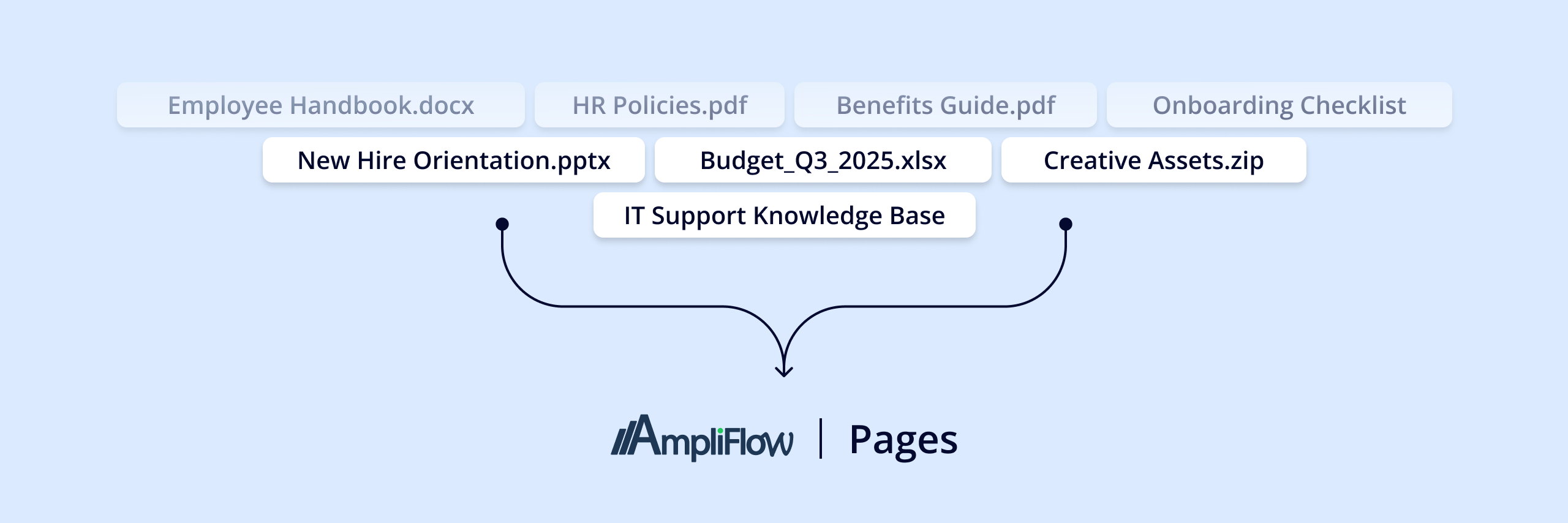
 “We have work instructions in AmpliFlow, policies in SharePoint, and handbooks in a PDF folder. Everyone asks where to look.”If this sounds familiar, we have a solution: Pages — a feature for creating, organizing, and sharing all your documentation and files in folders directly in AmpliFlow, where you already work with processes, risks, and deviations.
Pages is activated via Settings and requires no additional cost.
What is Pages?
Pages lets you gather all organizational information in one place — where you already work.
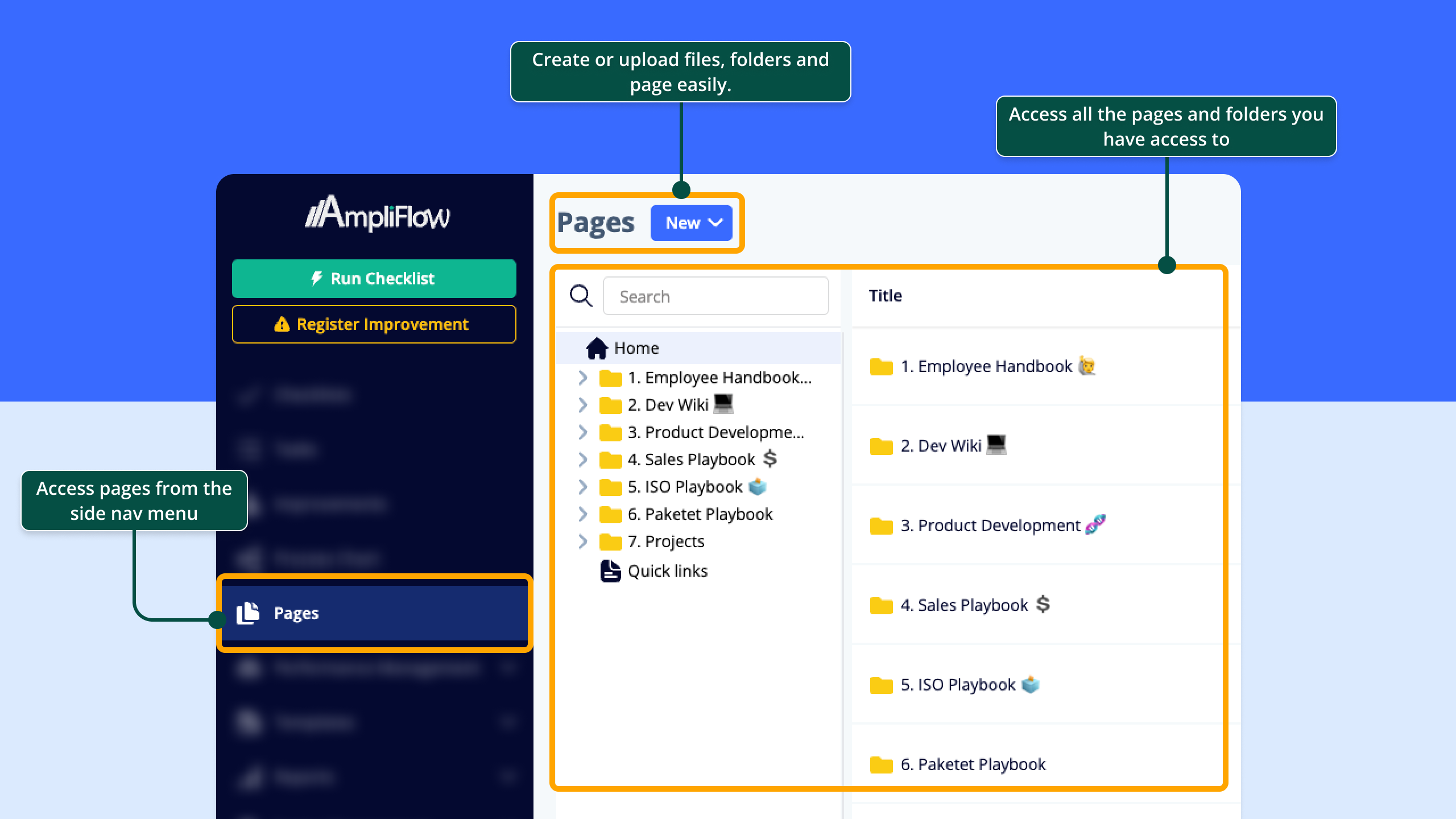 Create and organize content:
-
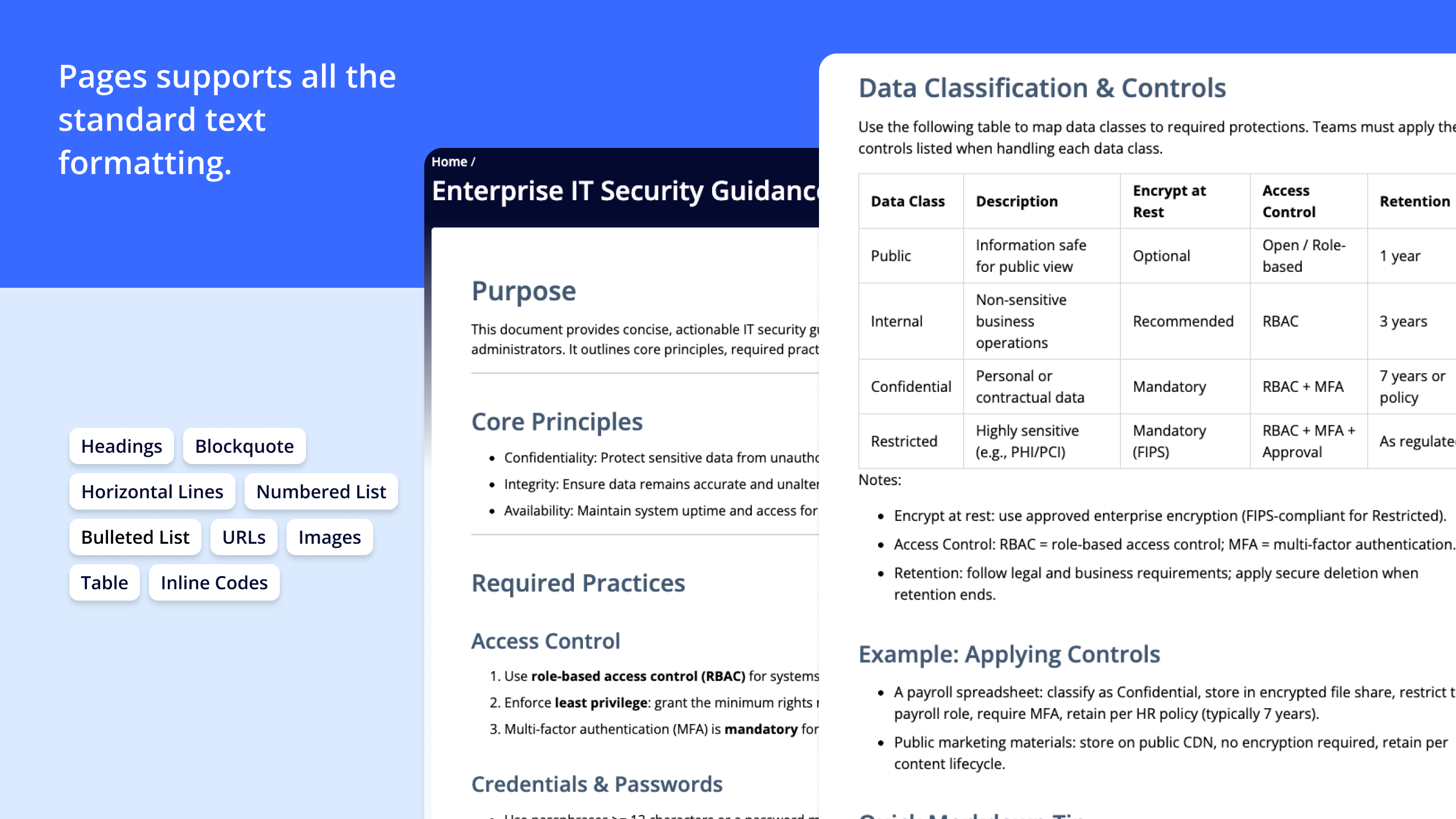
Write pages with rich formatting (headings, lists, images, tables, links)
-
Organize content in folders and subfolders
-
Upload files (PDF, Word, Excel, images, PowerPoint)
-
Export pages to PDF for printing or external sharing Control access:
-
Share content with teams and users
-
Three permission levels: Viewer, Editor, Owner
-
Permissions inherit by default from Pages → folders → pages/files
-
Set unique permissions on any folder, page, or file to restrict access (break inheritance)
-
Editors can edit content and see the origin of permissions; only Owners can change permissions
-
Admins always have full access
-
Users only see items they have at least Viewer access to
-
A lock icon indicates items with custom permissions (visible to editors/owners) Data protection:
-
Users only see what they have access to
-
Restricted content won’t be revealed via folder names or breadcrumbs
-
Items are shown under the nearest location the user can access
 Common use cases:
Consolidate scattered information
-
You have work instructions in both AmpliFlow and SharePoint
-
Policies are in a PDF folder that nobody can find
-
Onboarding materials exist in old email threads→ Gather everything in Pages so new employees know where to look Background information and context
-
Explain why a process looks the way it does
-
Document decisions and lessons learned from projects
-
Collect references to industry standards and external requirements Intranet and news
-
Practical information for employees
-
Links to important resources
-
News and updates from management Flexible documentation
-
When checklists feel too rigid (you don’t need a step-based structure)
-
When you don’t need version control or approval workflows
-
When you want full freedom in how you structure content
How to activate Pages?
Only organization administrators can activate the feature.
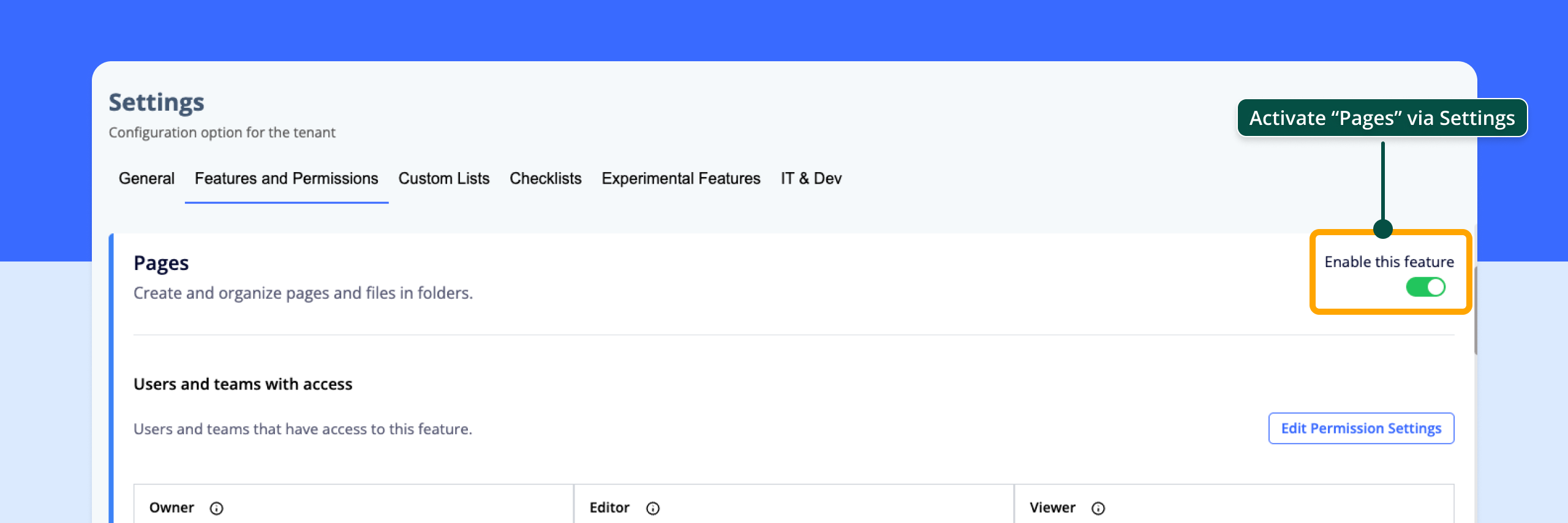 Activation steps:
-
Go to Settings > Features
-
Find the Pages feature
-
Activate the Pages toggle
-
Click “Edit Permission Settings”
-
Assign permissions to relevant roles:- Pages - Owner: Can create, edit, delete and assign permissions
-
Pages - Editor: Can create, edit and delete pages and folders
-
Pages - Viewer: Can only view pages
-
You can also set unique permissions on individual folders, pages or files directly from their permission settings. When the feature is activated, you’ll find Pages in the main menu.
When should you use Pages?
AmpliFlow offers several ways to manage information. Here’s the difference:
  If you need...
  Use this feature
  Why


  **Step-based work instructions** that are followed in exact order
  **Checklist Templates**
  Standardized process with clear sequence, team assignment per step, version control


  **General information, policies, handbooks** that are read but not "executed"
  **Pages**
  Flexible structure, formatting with images and tables, file upload, folder organization


  **Background information and context** that explains "why"
  **Pages**
  Easy to link from processes and checklists


  **Collect external documents and files** (PDF, Word, links)
  **Pages**
  Support for file upload and folder organization


  **Recurring routines** that are scheduled automatically
  **Checklist Templates**
  Can be scheduled to run weekly, monthly, etc.
:root { —background: #ffffff; —foreground: #000000; —border: #e5e5e5; —primary: #396AFF; —muted: #f9f9f9; —muted-foreground: #6b7280; }
.ampliflow-table { width: 100%; border-collapse: collapse; font-family: ui-sans-serif, system-ui, sans-serif; color: var(—foreground); background-color: var(—background); border: 1px solid var(—border); border-radius: 0.5rem; overflow: hidden; box-shadow: 0 1px 3px 0 rgba(0, 0, 0, 0.1), 0 1px 2px 0 rgba(0, 0, 0, 0.06); }
.ampliflow-table thead tr { border-bottom: 1px solid var(—border); background-color: var(—primary); color: white; }
.ampliflow-table th { padding: 0.75rem 1rem; text-align: left; font-weight: 600; font-size: 0.875rem; color: var(—background); white-space: nowrap; }
.ampliflow-table tbody tr { border-bottom: 1px solid var(—border); transition: background-color 0.2s; }
.ampliflow-table tbody tr:last-child { border-bottom: none; }
.ampliflow-table tbody tr:hover { background-color: var(—muted); }
.ampliflow-table td { padding: 1rem 1rem; text-align: left; vertical-align: top; font-size: 0.875rem; }
.ampliflow-table td:nth-child(2) { font-weight: 700; color: var(—primary); }
.ampliflow-table tbody tr:empty { display: none; }
Real-world examples:
Use Checklist Templates for:
-
“Quarterly equipment inspection” (12 steps in sequence)
-
“New employee onboarding” (step-by-step process with team responsibilities)
-
“Customer visit - quality control” (standardized checklist) Use Pages for:
-
“Introduction guide for new employees” (general information, not step-by-step)
-
“Remote work policy” (read and understood, not “executed”)
-
“Background to our quality process” (context and explanations)
-
“Collected ISO documents and audit reports” (file archive with PDFs)
Why Pages instead of SharePoint or other solutions?
Common situation: Work instructions in AmpliFlow, policies in SharePoint, handbooks in PDF folders, onboarding materials in old email conversations.
Problems with scattered information:
- New employees don’t know where to look
- IT maintains permissions in multiple systems
- Risk of someone working from an outdated version
- Auditors switch between systems to see the full picture
Benefits of Pages in AmpliFlow:
Performance and usability
-
Much faster loading than SharePoint (no unnecessary functionality slowing things down)
-
Simpler folder structure that’s easy to understand and navigate
-
Smooth editing without confusing permission conflicts Clearer boundaries between different types of information
-
AmpliFlow Pages: Information established by the organization (policies, handbooks, documentation)
-
Microsoft Teams: Collaboration, chat, projects, internal department discussions
-
Clear separation between “workspaces” (Teams/Slack) and “established information” (AmpliFlow) Everything connects
-
Current information, processes, checklists, and deviation management in the same place
-
Pages can be linked directly from processes and risks
-
One login, one system, one permission model Easier multilingual support
-
Manage multiple languages in a way that both editors and users understand
-
Translations are clearly linked to original pages Practical features
-
Export pages to PDF with one click (for printing or archiving)
-
Same Teams and Users as the rest of AmpliFlow
-
Simpler permission management than SharePoint Tip: We can help you migrate content from SharePoint, network drives, or other systems to Pages. Contact support@ampliflow.se for more information.
Permissions for Pages
Pages has three permission levels:
  Permission
  What they can do


  **Pages - Owner**
  See all pages, add or import new pages, create folders, edit, delete existing pages and folders. Can assign Pages permissions.


  **Pages - Editor**
  See all pages, add new pages, create folders, edit, delete existing pages and folders.


  **Pages - Viewer**
  Can only view pages.
Tip: Start by giving Pages - Owner to those who will structure the content, then expand with Editor and Viewer once the structure is in place.
Frequently asked questions
Does Pages cost extra? No, the feature is included in your AmpliFlow license. You activate it yourself via Settings.
**Can we upload existing documents? **Yes, you can upload files (PDF, Word, Excel, images, PowerPoint, text files) and organize them in folders. You can also create new pages directly in the system where you can format text with headings, lists, images, and tables.
What happens if we deactivate Pages again? All content you created is saved. If you activate the feature again, all pages, folders, and files will remain exactly as before.
Can we restrict a specific folder or page to a team? Yes. Set unique permissions on that folder or page and add the users/teams that should have access.
Is there an audit trail of permission changes? Yes. All permission changes are logged with before/after details.
Get started
-
Activate the feature via Settings > Features
-
Assign permissions to relevant roles (Owner, Editor, Viewer)
-
Create your first folder structure (e.g., “Policies”, “Handbooks”, “Onboarding”)
-
Create some example pages to test the functionality
-
Invite the team to start using Pages Questions or feedback?
-
Support: support@ampliflow.se
-
Feedback about Pages: feedback@ampliflow.se We hope Pages becomes a valuable tool for gathering and structuring your organization’s knowledge — where you already work!